




MembershipWorks implements our own anti-spam and anti-fraud system by detecting suspicious activity that repeatedly targets the same form. But as web fraud and spam activity increase in volume and sophistication, we recommend implementing an additional layer of security by enabling Google reCAPTCHA for your MembershipWorks membership sign-up form, event registration forms, donation forms, and other forms created through our Forms/Carts/Donations feature.
MembershipWorks integrates with the latest generation v3 reCAPTCHA, which is invisible to users – your members do not have to actively identify any text or objects when submitting the form. Google detects robot activity through advanced risk analysis techniques based on how the user is interacting with your website. Adding Google reCAPTCHA does not require that you disable MembershipWorks built in anti-spam and anti-fraud system, so you have the benefit of defense in depth with both systems combating bot and fraudulent/spam activity.
Google reCAPTCHA is also an industry accepted anti-spam / anti-fraud system that may be required by your payment gateway (Stripe, Paypal, Authorize.net, etc) if you have been a victim of previous fraudulent activity on your website.
To integrate Google reCAPTCHA with MembershipWorks, you will first need to establish a Google Cloud account and then navigate to the reCAPTCHA page:
https://console.cloud.google.com/security/recaptcha
Create a new project on the reCAPTCHA page with an appropriate project name, then click Enable for the reCAPTCHA API. Then click “Setup up reCAPTCHA protection.
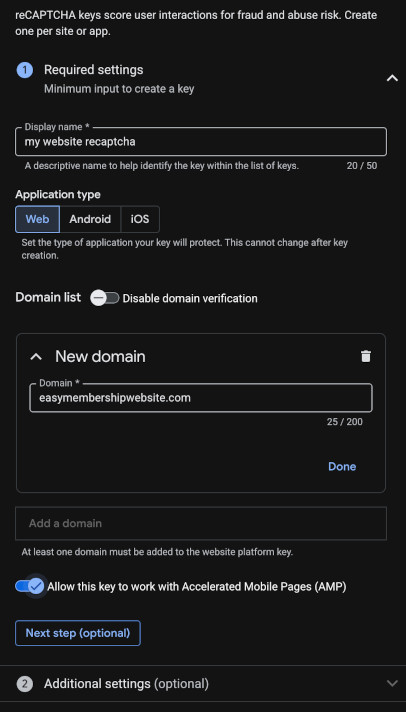
Provide a suitable name for the new reCAPTCHA key, select “Web” as the application type, and click “Add a domain”. Enter the domain name of your website and click Done. Note that if you use MembershipWorks forms on sub-domains or on other websites (eg. allow partners to embed your event registration forms), you will need to specify all the additional domain names as well, otherwise the forms will stop working on those websites.
Next enable “Allow this key to work with Accelerated Mobile Pages (AMP)” and click Create key at the bottom of the screen.
Once the key has been created, click on “Integrate with a third-party service or plugin”. If you do not see this section, click “Use legacy key”. Copy down the “legacy secret key” shown on the popup. In addition copy down the ID (key) shown at the top of the page next to the name.
In MembershipWorks go to Organization Settings > Security and enter the keys from Google accordingly. The ID key should be entered under “Google reCAPTCHA Site Key” and the secret key under “Google reCAPTCHA Secret Key”.
You will also need to specify the minimum score required for MembershipWorks to allow the transaction through. A score of 0.0 means the transaction is likely generated by a bot, while a score of 1.0 means the transaction is likely a human interaction. The default minimum score is 0.5. Note that Google will take some time to learn user patterns on your website and it will usually score transactions as 0.5 initially, so do not require a score of higher than 0.5 in the beginning or users will not be able to signup or register for your events. Over time if you receive reports from your members that their transactions are not being allowed through, you review the reCAPTCHA dashboard and lower the required score accordingly.
After adding the keys and specifying your minimum score, click “Save & Continue” to save your settings.
Important! Test your forms immediately afterwards by signing up as a new member or registering for an event. Any error in your Google reCAPTCHA setup can cause all your forms to fail. Note that verifying that the form loads normally is not sufficient, you need to submit a transaction to make sure reCAPTCHA is working as intended.
Comments are closed.