



• Home
  • Features
    • Membership Software
    • Member Directory
    • Event Calendar & Registration
    • Member Billing & Online Payments
    • Donations, Shopping Carts & Forms
    • Job Board
    • Announcement Board
    • Classified Ads
    • Members Only Website
    • Website Integration
      • WordPress
      • Squarespace
      • Weebly
      • Without Code
      • Duda
      • Wix
      • HTML5
    • Integrations
    • International
  • Sign Up
    • Pricing & Sign Up
  • Customers
    • Customer Sign In
    • Getting Started
      • MembershipWorks Hosted Website
      • WordPress Plugin
      • Squarespace
      • Weebly
      • Without Code
      • Wix
      • HTML5
    • Customer Websites
  • Developers
    • Find a Developer
    • Create a Developer Listing
    • Manage Developer Listing
  • Demo
    • WordPress Demo
    • Squarespace Demo
    • Weebly Demo
    • Without Code Demo
    • Duda Demo
    • Wix Demo
    • Video Demo of Admin
    • Schedule a Personal Demo
  • About
    • Contact Us
    • Cancel/Suspend Account
    • Schedule a Personal Demo
    • Schedule a Personal Training Session
    • Our Blogs
      • Guides
      • Best Practices
      • Secret Confessions of an ED
      • WordPress with the Light On
    • New Features
    • Careers
    • System Status
Schedule Demo

Discover our membership software with a one-on-one personalized demo:

Schedule a Demo
CMS Integrations

Integrate with WordPress, SquareSpace, Weebly and more.

Learn More!
MembershipWorkslogo

Pass UTM Code/Parameter for Referral Tracking on Event Registrations

Posted on Jun 6, 2022 by Amy HuffordJun 29, 2022

Administrators can now add fields to event registration forms to collect UTM codes or parameters for referral tracking purposes. These codes are passed on by links such as those from Google Adwords. The fields are invisible to your website users, but can be viewed and exported by the admin.
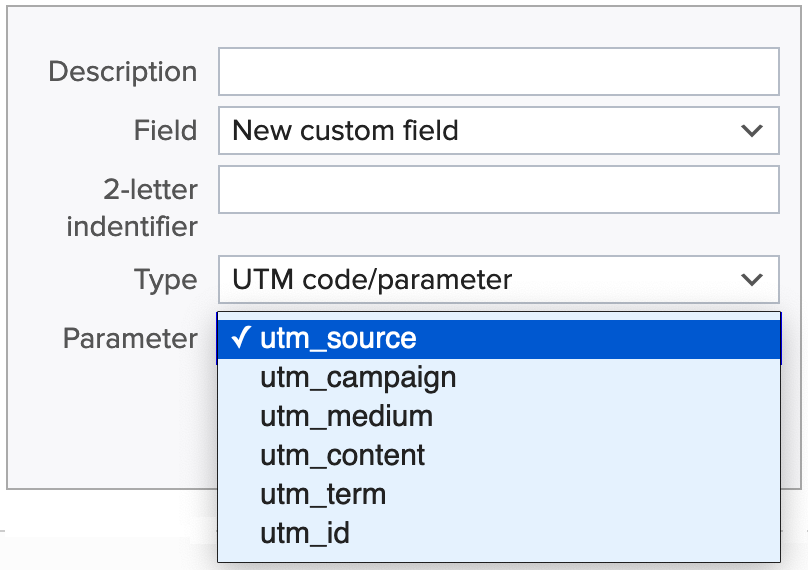
UTM referral tracking

How to implement this feature on your Event Registration template

  1. Go to Customization > Event Registration
  2. Click on “+ Add Field”
  3. Under Field select “New custom field.” Note that if you have already created UTM fields for your Member-Sign Up template, you can reuse/add those fields here without impacting the data collected by either form.
  4. Under Type select “UTM code/parameter”
  5. Under the “Parameter” field, select the appropriate UTM code you want to record with this field. Your choices are:
    • utm_source
    • utm_campaign
    • utm_medium
    • utm_content
    • utm_term
    • utm_id
  6. Provide an appropriate Description and 2-letter identifier.
  7. Click OK
  8. Repeat steps 2-7 for each of the UTM codes you want to record
  9. Click “Save Template” to save the changes to the form. The UTM fields will be invisible to those completing your form.

FAQs

What is a UTM code?

UTM stands for Urchin tracking module. UTM codes are added to the end of a URL; they provide Google Analytics or other tools with information about the link. With UTM codes attached to your links, you can track:

  • How much traffic comes from a specific link, such as a link in an email campaign, blog post or on social media
  • If the ad campaign you are running is having success
  • Conversion metrics in Google Analytics related to various campaigns

URL formatting and example

If you need to provide the URL to the events calendar/list page to the referral source, make sure to remove the part of the URL including and after the # symbol. For example if the events page URL is:

https://demo.membershipworks.com/events/#!calendar

Then the URL you should provide to the referral source is:

https://demo.membershipworks.com/events/

When the referral source directs users to the page with the UTM codes, the URL would look something like this:

https://demo.membershipworks.com/events/?utm_source=newsletter&utm_medium=email&utm_campaign=july-2023

How do I access the UTM field data?

Once you’ve added UTM-related fields to your Event Registration template, you can view the UTM data associated with a registration by clicking on Edit > Edit registration from the event dashboard.

You can access the data in bulk by exporting the event’s data to a CSV file:

  1. Click on Event List
  2. Click on the event you want to collect data from
  3. On your event’s Dashboard, click “Export CSV”
  4. Under “Registration data to include” at minimum select “Primary registration information”
  5. Have at least one of the items under “Export only registrations with these tickets” selected
  6. Click “Export”

How do I know if I need to add this field to my Event Registration template?

You only need to add these fields if you are seeking to track things such as PPC campaigns or other marketing efforts.

Can MembershipWorks help me set up UTM codes?

We can walk you through adding in the fields into MembershipWorks and downloading UTM data, but creating the codes and doing things such as creating goals in Google Analytics is up to you and your developer or marketing team.

Can I use UTM codes with other forms in MembershipWorks?

Yes, you can use them on the following MembershipWorks features:

  • Member Sign-Up form
  • Forms/Carts/Donations
  • Jobs/Other Boards

GoToOlder PostNewer PostAll PostsFeatures

Comments are closed.

  • Home
  • Features
  • Sign Up
  • Customer Sign-In
  • Terms of Service / Privacy
  • Cookie Notice
  • Developers
  • Contact